Add legal texts before launch
- Last verified
- Last verified Aug 13, 2026
Use this article before you send customers to your online shop The customer-facing sales channel where customers browse offers, select tickets, enter checkout details, and complete payment or confirmation.. Legal texts you create in the back office appear as links in the shop footer. Documents marked as required must be accepted when a customer creates an account and again at checkout if they have not already accepted them for their account.
Before you start
- Prepare the final wording (or the URLs) for the documents you need. Typical documents are Terms & Conditions, Privacy policy, Imprint, Cookie policy, and Withdrawal instruction; an Other type is available for anything else.
- Decide per document whether KORONA Event should host the text on its own shop page or link to an existing page on your website.
- Decide which documents customers must actively accept when they create an account or complete checkout.
- Legal requirements depend on your market. Confirm with your legal advisor which documents you need and whether acceptance must be explicit.
Prepare an accessibility statement
Use the Accessibility type for information about your shop's accessibility. Before publishing the pre-filled text:
- Name the public shop URL and the services the statement covers. An assessment of your main website does not establish the accessibility of your online shop.
- Replace the sample provider, contact and payment details with your own information.
- Base statements about accessibility on the assessment of your actual shop, including its content and customisation. Record the assessment date, method and scope, and describe known limitations and how customers can report barriers.
- Retain claims about external testing or compliance with a standard only when you have evidence supporting those claims for your shop. A sample of selected pages or checks does not establish compliance for the complete booking journey.
Your legal adviser should confirm which requirements apply and whether to use a separate statement or extend an existing one. To publish the approved wording in the shop, choose Document page. To link to an existing statement, choose External URL and use a page that explicitly covers the shop. Publishing either kind of document does not change the accessibility of the shop itself.
After saving, open the link in the shop footer to confirm that customers can reach the intended statement in the relevant language. When revising an existing statement, review its scope and assessment details as well as the wording.
Steps
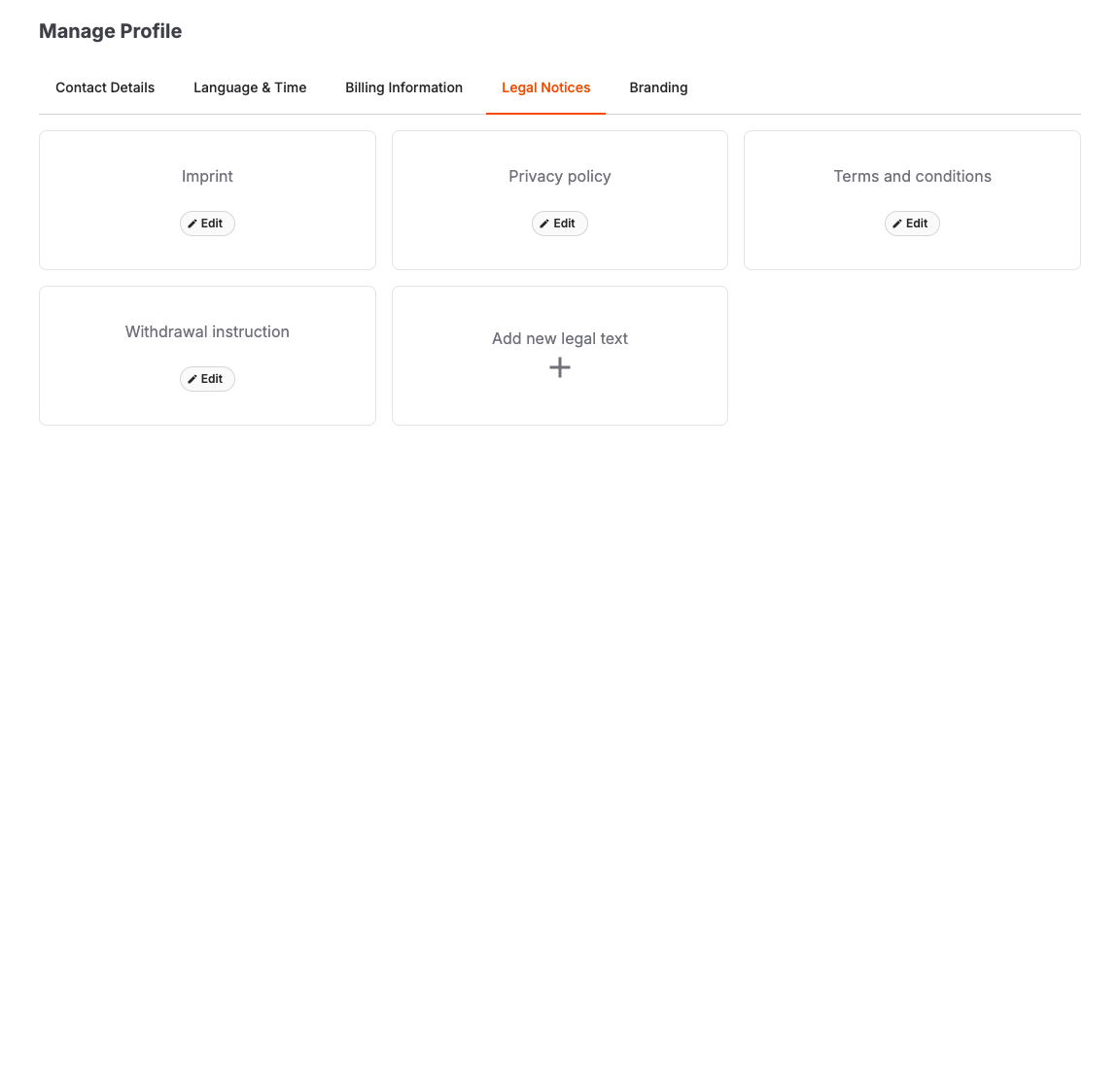
- In the back office, open Admin > Account and select the Legal Notices tab.
- Select Add new legal text.
- Select the Type. For the Accessibility and Withdrawal instruction types, a default text template is pre-filled that you can adapt.
- Enter the Title customers should see and check the URL Slug, which sets the end of the document's shop page URL.
- Under Document destination, select Document page to host the text in the shop, then enter the text under Content. Or select External URL and enter the Document URL of a page on your own site.
- If customers must accept the document when creating an account or completing checkout, turn on Required to accept at checkout and review the Checkbox label — this is the text shown next to the checkbox in registration, the account profile, and checkout.
- Select Save.
If your account has foreign shop languages, the editor also offers per-language fields for the title, slug, content or URL, and checkbox label. Fill these in so customers in each language see the right document.
How the shop shows your legal texts
- The shop footer lists your legal documents under a Legal heading.
- A Withdrawal instruction document is shown separately in the footer under a Right of withdrawal heading. When the shop shows the withdrawal flow, the Withdraw from contract button appears in the same section.
- Documents hosted as a document page open on their own page in the shop; External URL documents open your linked page.
- During Create account, required documents appear under Legal agreements with one checkbox per document.
- On the signed-in Account > Profile page, required documents that still need acceptance appear under Legal agreements. Documents already accepted for their current published version are hidden.
- In checkout, required documents appear under Legal agreements only when the customer has not already accepted them for their account (or for the current order). Customers cannot complete the order until every missing required document is accepted.
When you edit a published legal text and select Save, KORONA Event publishes a new version. For a document with Required to accept at checkout turned on, an earlier acceptance does not cover the revised version. The document appears again in registration, the account profile, or checkout when the customer needs to accept it. Use Archive only when the document should no longer appear in the shop.
Review links in your legal texts
New or changed external links must use https://, including links pasted into the content and External URL destinations. Relative shop links, page anchors, email links and telephone links remain available.
If you enter an HTTP link in the link editor, select Use HTTPS to copy the suggested address, or enter a different destination. Check that the HTTPS page works and contains the intended information before saving the link.
The HTTP links to review section lists HTTP destinations already in the content, including pasted links. Open the HTTPS suggestion, check the page, then choose Replace link. You can edit Destination to use another page. If no suitable destination works, choose Remove hyperlink, keep text. For an External URL document, choose another working HTTPS page or switch to Document page and enter the document text.
Review the links for every shop language. Existing HTTP links can remain while you make unrelated edits; adding another HTTP destination or another occurrence of an existing HTTP link prevents saving. Replacing a destination in the review section updates all occurrences of that destination in the selected language.
Expected result
The shop footer links to every published legal text, each document opens with the intended content or external page, and registration, the account profile, and checkout ask for acceptance of exactly the documents you marked as required — without asking again for documents the customer already accepted on their account.
Troubleshooting
| Problem | What to check |
|---|---|
| A document is missing from the shop footer | Whether the document exists under Legal Notices and has not been archived. |
| The link opens the wrong page | The Document destination setting and the Document URL, which must use https:// for a new or changed destination. |
| Registration or checkout does not ask for acceptance | The Required to accept at checkout setting on the document, and whether the customer already accepted it on their account. |
| Customers see the wrong language | The per-language fields on the document and the shop languages configured under Admin > Account > Language & Time. |
| An old document must be taken down | Archive it from the document's edit page; archiving can be undone. |