Configure product capacity and sub-products
- Availability
- Beta
Use this when a product A sellable item such as merchandise, an add-on, or another extra. Products can also be attached to event prices. represents a person, a place, a bundle, or one or more sub-products A product included in or selected with a parent product, such as a bundled ticket, meal, rental item, or separately priced add-on.. The configuration decides how one booking affects capacity and attendee records; incorrect settings can oversell a slot or omit people from the attendee list.
Product composition and commercial prices are owned by KORONA.studio. KORONA Event lets you review the synchronized structure and maintain the operational capacity and attendee behavior.
Open capacity settings
- In the back office, open Services > Products.
- Select the product.
- Open Capacity settings.
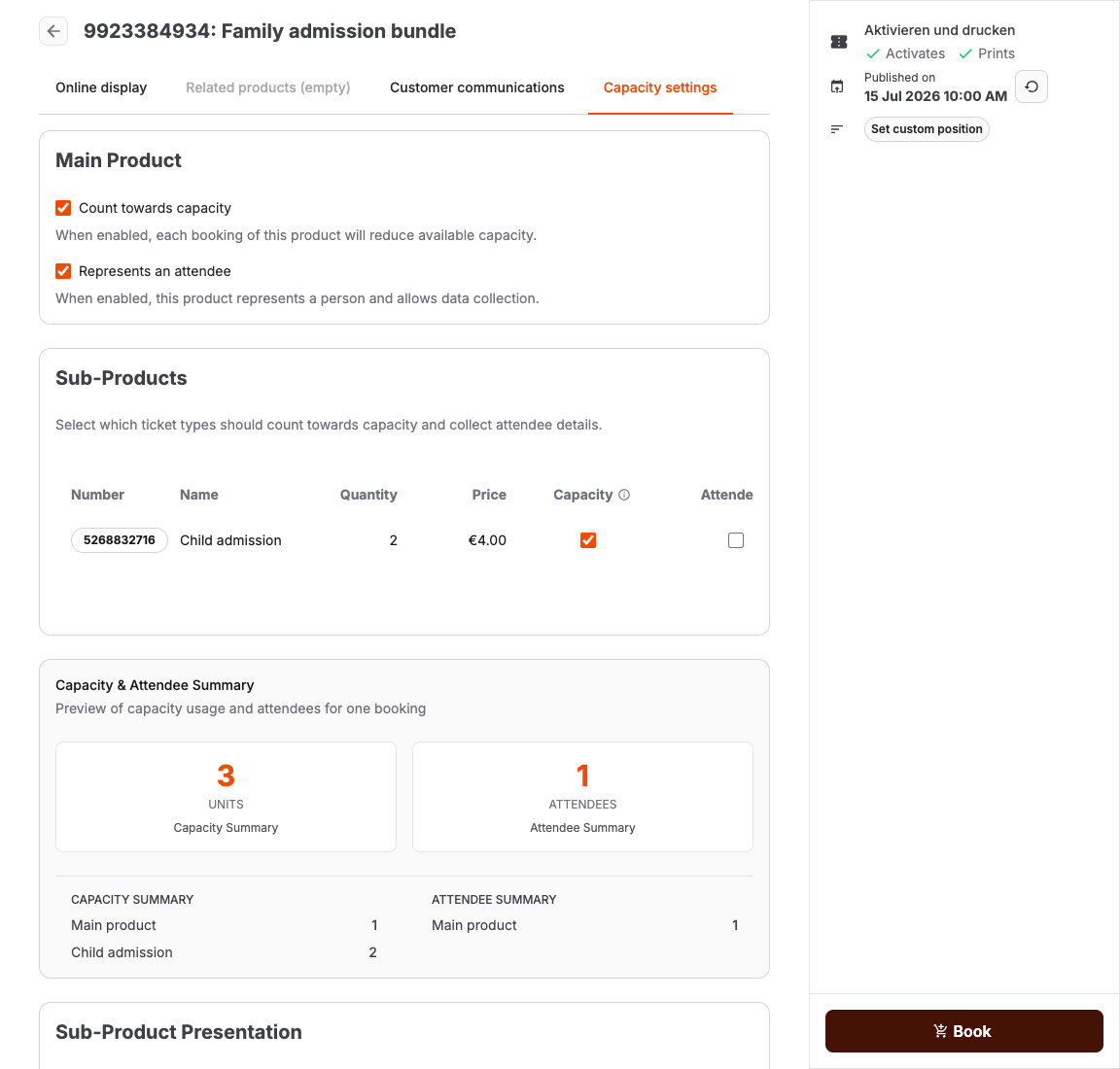
Configure the main product
The two controls are independent:
| Setting | Turn it on when |
|---|---|
| Count towards capacity | Each booked unit occupies a place or consumes operational capacity. Price does not matter: free infant, toddler, carer, or companion tickets may still need this setting. |
| Represents an attendee | Each booked unit represents a person and should create an attendee record for data collection, tickets, exports, or entry operations. |
Merchandise, donations, and administrative extras normally use neither setting. A rental item might count toward inventory capacity without representing an attendee. A participant ticket normally uses both.
Review fixed sub-products
Fixed Sub-Products are synchronized from KORONA.studio. For each row, review:
- whether it counts toward capacity
- whether it represents an attendee
- its quantity
- Fixed per booking, when every parent booking adds the same quantity
- Per entered quantity, when the sub-product quantity multiplies by the number of parent products selected
The Sub-Product Presentation is also owned by KORONA.studio. It can show all details, hide prices, hide quantities, or hide all sub-product details. Change the presentation mode in KORONA.studio, then synchronize.
Review tag-based selectors
A tag selector lets customers choose from published products with a matching KORONA tag. Selectors may be fixed or let the customer enter quantities. Review:
- the selector title and imported tag
- matching published products
- minimum and maximum total quantity for variable choices
- whether selected items are bundled into the parent price or priced as separate add-ons
- capacity and attendee behavior for every possible selected product
If a product with tag-based selectors has no active base price, the current online shop starts the main product at zero and adds the applicable prices for both fixed and selected sub-products. If the main product should contribute its own amount, configure an active price for it in KORONA.studio and synchronize.
Allow up to one optional sub-product per main ticket
In KORONA.studio, open the main product's composition. Add the tag-based sub-product if it is missing, and set its quantity to 0 before you synchronize with KORONA Event. With a quantity above 0 in KORONA.studio, synchronization switches the selector to a fixed choice and clears the minimum and maximum.
A newly imported variable selector starts with a minimum of 0 and a blank maximum. Set the desired limits in the back office.
- Open the main product's Capacity settings. Under Tag selectors, find the existing selector for the matching tag.
- Set Selection mode to Choose quantities across matching products.
- Set Minimum total quantity to 0 and Maximum total quantity to 1.
- Set Limit scope to Per attendee and save.
For this limit, Per attendee uses the booked quantity of the main product. With two main tickets, customers can select 0, 1, or 2 extras in total across all products that match the tag. The shop rejects a total of 3.
With Absolute total, the same maximum of 1 applies to the selection as a whole even when the customer books two main tickets. Choose exactly one matching product requires customers to select one matching product and uses the configured Fixed quantity per main ticket.
Combine fixed components and choices
A product can contain fixed sub-products and tag-based choices together. For example, a family ticket can include two fixed adult admissions and let the customer select one to three child admissions. The selector's minimum and maximum apply to the choices; fixed components do not satisfy those limits.
Both sets contribute their configured prices, capacity, and attendee records. If the same product appears as a fixed component and a choice, both quantities apply. Separate add-ons remain separate order rows and are charged in addition to the bundle.
Changes to the product configuration apply to new bookings. Existing bookings keep their saved components when only the booking quantity changes. Changing the selected products rebuilds the composition from the current configuration.
Choose components for several membership units
When a membership product has variable included choices, the shop and POS show those choices for each numbered product unit. Choose the components for each unit separately: two units in the same sale can contain different selections. Choices labelled Across all units apply to the combined quantity instead. Fixed components are included automatically; separately priced add-ons remain separate sale lines.
A tag-based choice with a fixed quantity is made once for the whole price row. To allow one independent choice per membership unit, configure a variable included choice with a minimum and maximum of 1 per parent product. Check the component prices when choosing this setup.
Check the combined result
Use Capacity & Attendee Summary to preview the minimum and maximum effect of one booking. Check both summaries with realistic quantities:
- Capacity Summary is the total reduction in available capacity.
- Attendee Summary is the number of attendee records created.
Save the settings and assign the product to a price row. Capacity & Attendee Summary shows the configured minimum and maximum result without requiring a test order.
Expected result
Every person and capacity-consuming item is counted exactly once, attendee records exist only where required, and customers can understand and complete all sub-product choices in the supported shop.
Troubleshooting
| Problem | What to check |
|---|---|
| Capacity falls by the wrong amount | Compare the main product and every effective sub-product in Capacity & Attendee Summary; include both fixed components and selected choices. |
| Attendee record is missing | Turn on Represents an attendee for the product that represents the person. Existing orders are not rebuilt automatically. |
| Customer cannot complete a selector | Confirm the account uses the current online shop, the selector's tag has matching published products, and its minimum and maximum can be satisfied. |
| Price or presentation is wrong | Correct the product price, bundle composition, or presentation mode in KORONA.studio, then synchronize. |